
Initiater for mac:
Initiater for mac is a lightweight macOS application that allows you to instantly extract editable text from anything visible on your screen. Whether the text comes from images, scanned documents, screenshots, or paused video frames, Initiater makes converting it into usable text quick and effortless.
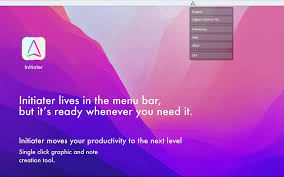
The app runs quietly in your macOS menu bar and is always available when you need it. Simply select any area of the screen using your mouse, and Initiater will recognize the text inside that region. The recognized text can be copied directly to the clipboard, saved as a text file, or previewed in a compact results window.
Initiater for mac also supports OCR from image files. You can open common graphic formats and convert the text they contain into editable plain text without taking a screenshot.
All processing happens entirely on your Mac. Initiater does not upload images, screenshots, or text to the cloud, and it does not require an internet connection. This makes it a secure OCR solution for users who value privacy and offline functionality.
The app is optimized for both Apple Silicon (M1 and newer) and Intel-based Macs, ensuring fast and efficient performance across modern macOS systems.
Key Features:
-
Select and capture any area of the screen
-
Extract text and copy it to the clipboard instantly
-
Save recognized text as a plain text file
-
Save selected areas as image files
-
Recognize text from image files (PNG, JPG, JPEG, BMP, TIFF, PSD)
-
Runs as a lightweight menu bar application
-
Fully offline OCR with on-device processing
-
No data collection and no cloud services
-
Native support for Apple Silicon and Intel Macs
Language Support:
-
English
-
French
-
German
-
Italian
-
Spanish
-
Portuguese
-
Chinese
The default recognition language can be changed in the app’s Settings.
Note: On macOS Catalina, only English is supported.
Recognition Modes:
-
Best Mode – Higher accuracy for low-quality, scanned, or damaged images
-
Normal Mode – Faster processing for clear text and high-quality images
Leave a Reply